What is it for?
To easily have unique strong passwords for different services.
Why?
We shouldn't reuse the same password in different services. There are too many breaches and too many shady services storing your passwords in plain text. You can check if any of your passwords has been pwned here. If one reuses their password, a hacker can (and often will) easily use that password to log into more sensitive services (e.g., your bank account).
How?
OK, so a different password per service…
but how can one keep track of all their different passwords?
You could rely on external password management services like 1password, nordpass, lastpass, etc'…
But…
If you don't like to rely on third-party services to always be available whenever you need them (no service has 100% uptime), prefer not to pay for them, or are just too paranoid to trust them, then you can rely on a password generator instead of a password manager.
With a password generator, you can have one master password, which you never use directly - but be able to generate different passwords for different services with it.
What exactly is a "password generator"?
A password generator is a small program you run locally without anything communicated to any 3rd party service.
To verify this little web app does not communicate anything to the outside world, you can open the developer tools' network tab and see that no requests are made when the form is filled or submitted.
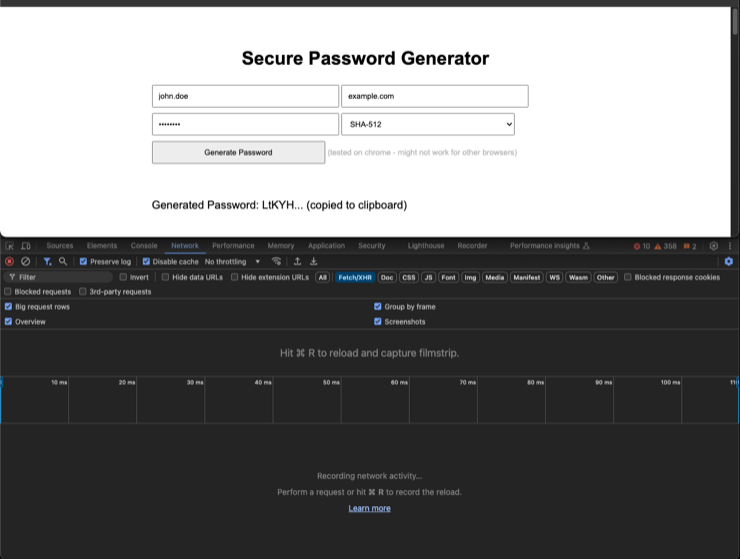
TL;DR:
we just hash all inputs together:
hash($username ++ $service ++ $master_password)Meaning, for different usernames and different services, even the same master password yields a different, unique password.
Originally, I created a simple bash script to do that, which worked great but was not really usable from non-PC machines like mobile phones. That's why I created this little page, allowing for simple password generation "everywhere".
You can freely copy the original bash script to use if you want:
Use responsibly
Good passwords should have enough bits of entropy, as we can learn from this xkcd oldie:
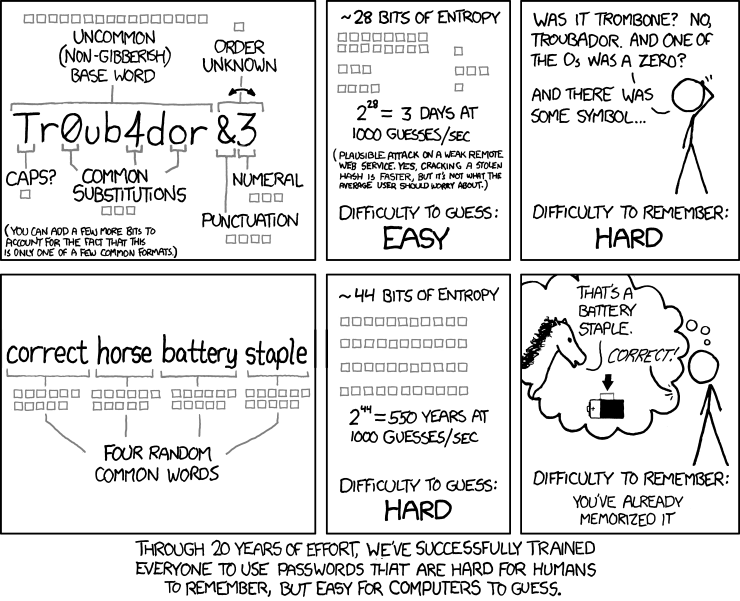
This is especially true when choosing a master password for a password generator.
Brute force attacks against services are often mitigated by rate limiting, and limited attempts.
But a simple hash function that anyone can run locally is prone to brute-force attacks.
If an attacker gets hold of one of your unique hashed passwords and guesses you might be using this password generator, they can easily brute-force known/short passwords. If, unfortunately, you use such a master password, they can match it against the hash and infer your master password.
If that happens, they can now use same generator to generate passwords to more sensitive services you might be using.
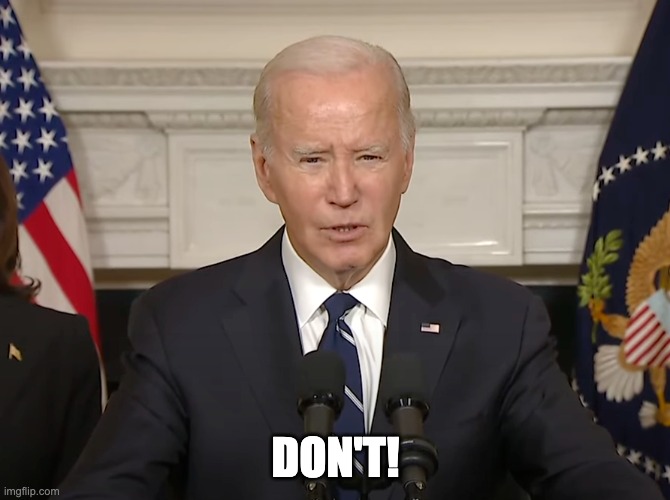
So, if you're considering using a dumb, easily typeable password as your master password, I have one thing to say to you:
A Note on Browser State and Security
If you suspect that this browser tab might have been tampered with (e.g., if you left your computer unattended with this tab open), or if you have any doubts about the current state of the page, it is a good practice to perform a hard refresh before entering your master password.
A hard refresh (often Cmd+Shift+R on macOS, or Ctrl+Shift+R or Ctrl+F5 on Windows/Linux) helps ensure that you are running the freshest version of the page's code directly from the server (or local file). This clears out many types of scripts or modifications that might have been temporarily injected into the page during the current session (e.g., via the developer console).
While this doesn't guard against all sophisticated attacks (like compromised browser extensions or operating system level threats), it adds a valuable layer of caution for the security of this tool when used in potentially untrusted browser states.